Language settings
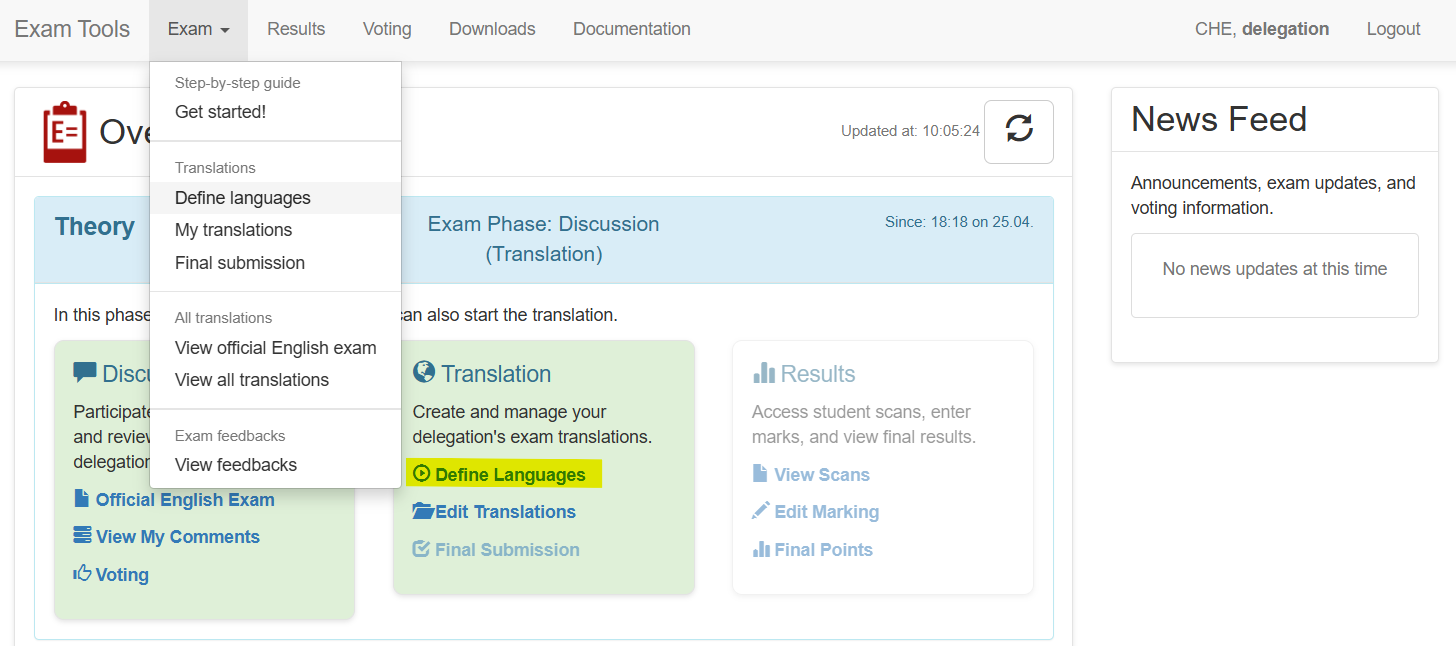
Create a new language
With the Add language button one starts the language dialog shown below.
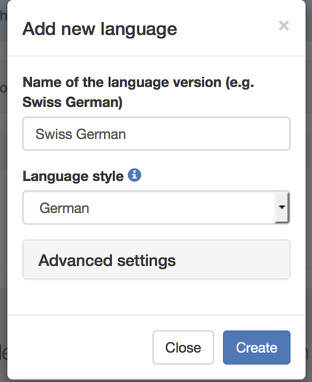
- Name of the language: specify the name of the language. The name has to be unique within your delegation and will be used to identify the language.
- Language style: For most languages there is a preset of advanced settings that should fit your needs. Fine tuning is possible within the Advanced settings:
- Writing direction: Left-to-right or Right-to-left, only for the web editor.
- Polyglossia style and Polyglossia Options: Polyglossia provides some specialized styles which are aware of indentation conventions, hypenation, etc. Select an option which is close to your language, or leave English as a default option. Defines the text direction in the PDF.
- Font in PDF: We make use of the Noto fonts which are supposed to cover most of the languages used world-wide. In case you do not find a font which fits your needs, please contact support and we will provide more options. For most fonts there is a sans-serif and a serif version available.
- Printing order: In case multiple languages are available, the number in this parameter will determine in which order they will be printed. Higher numbers mean that they are printed later. Official EN has printing order 0.
Hints for non-roman languages
Bidi support
In the web editor we make use of the Writing direction setting to customize the interface.
In the printable version one has to set the correct Polyglossia style to set the text direction. The following styles are known to be right-to-left:
- Arabic
- Hebrew
- Syriac
CJK support
Chinese-Japanese-Korean (CJK) languages are supported thanks to the Noto CJK Fonts. For example these fonts:
- Noto Sans JP for Japanese
- Noto Sans KR for Korean
- Noto Sans SC for Simplified Chinese
- Noto Sans TC for Traditional Chinese